How to convert a PNG to DST with Ink/Stitch
Trace the PNG into shapes in Inkscape, give the shapes fill stitches with the free Ink/Stitch extension, and save a copy as a Tajima DST. Here is every step on our own logo, with screenshots from Inkscape 1.2.2 and Ink/Stitch 3.3.0.
By Levente, who builds BobbinBot. Published .
What you need
- Inkscape, the free vector drawing program, from inkscape.org.
- Ink/Stitch, a free, open-source embroidery extension for Inkscape. Its site has install steps for Windows, macOS and Linux.
- A PNG with a few flat colors. Logos and clip art trace cleanly; photos do not. To follow along exactly, download the shield we used.
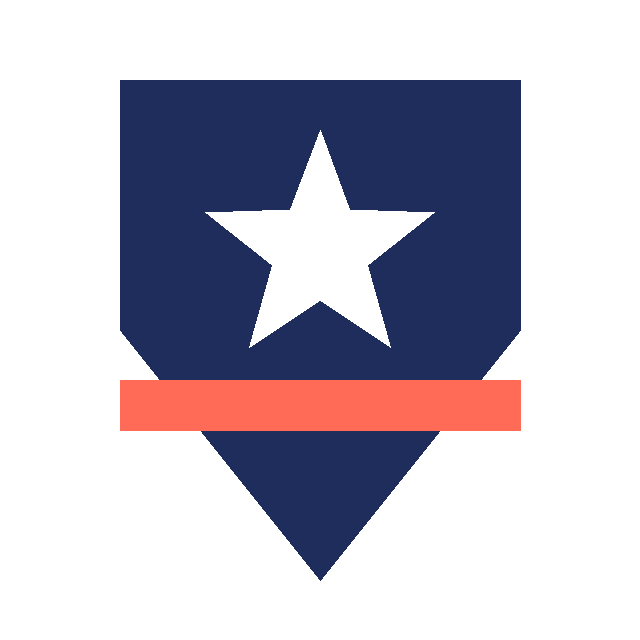
Menus move a little between versions, so if something is not where the screenshot shows it, look one menu over. Our shield is 640 × 640 pixels: a navy shield, a white star and a coral band.
1. Import the PNG
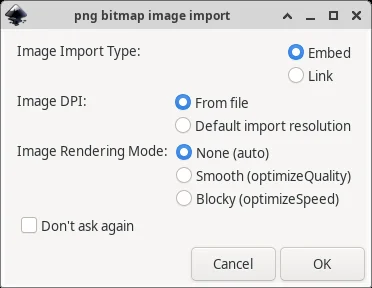
Open Inkscape, then choose File › Import (Ctrl+I) and pick the PNG. Inkscape asks how to bring the picture in. Embed keeps it inside the drawing, and DPI from file keeps its size. Click OK.
2. Trace it, in colors
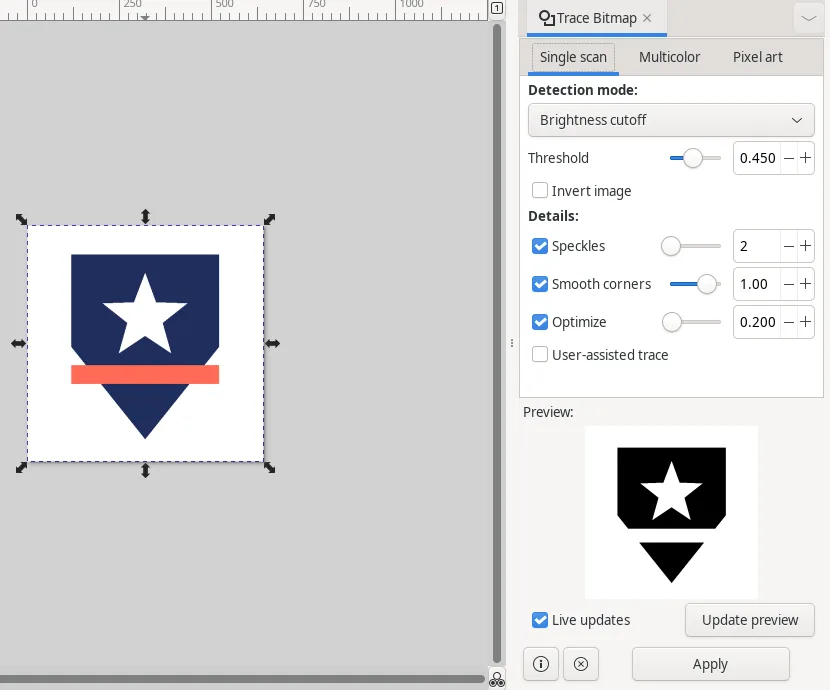
Click the picture to select it and open Path › Trace Bitmap (Shift+Alt+B). The panel opens on Single scan, which makes one shape out of everything darker than its threshold. That is wrong for a logo with more than one color: on ours, the coral band is lighter than the cutoff, so it disappears from the preview.
Switch to the Multicolor tab and set Detection mode to Colors. Set Scans to the number of colors in the picture, counting the background: three here, for navy, coral and white. Tick Remove background, so the white around the logo does not become a shape that would be sewn in white thread. We left Smooth and Stack unticked and the details at their defaults.
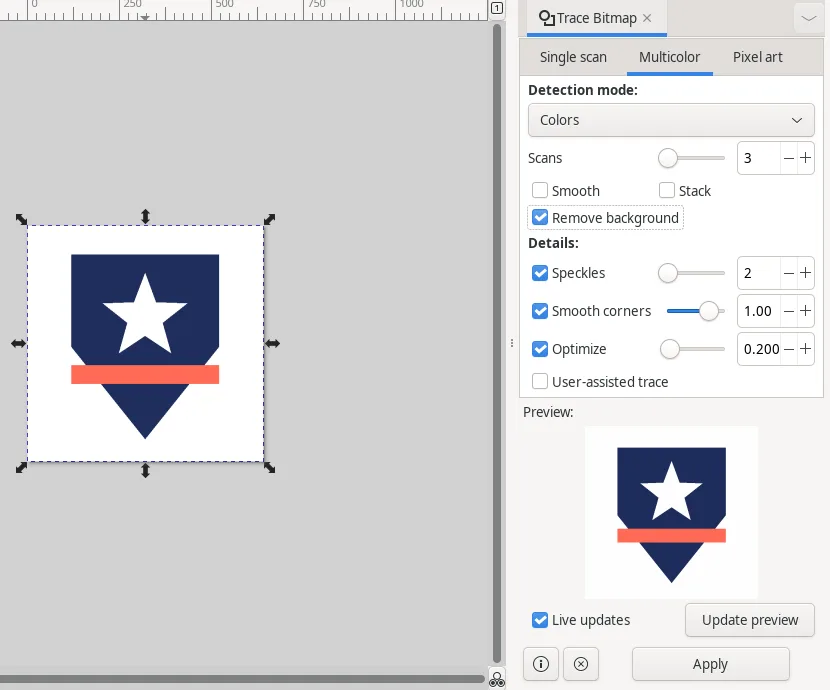
Click Apply. Inkscape made two shapes, navy and coral. The white star is a hole in the navy shape, not a white shape, so no white thread is sewn there and the fabric shows through. On a white shirt, that looks the same as the picture.
3. Delete the picture and set the size
The traced shapes sit on top of the original picture. Drag them aside, click the picture, press Delete, and drag the shapes back. That leaves only the shapes you want stitched.
Now set the real size. Select the shapes, switch the units in the toolbar to mm, lock the ratio, and type the width. We typed 80 mm, and Inkscape made the height 99.8 mm. Make sure your size fits your hoop.
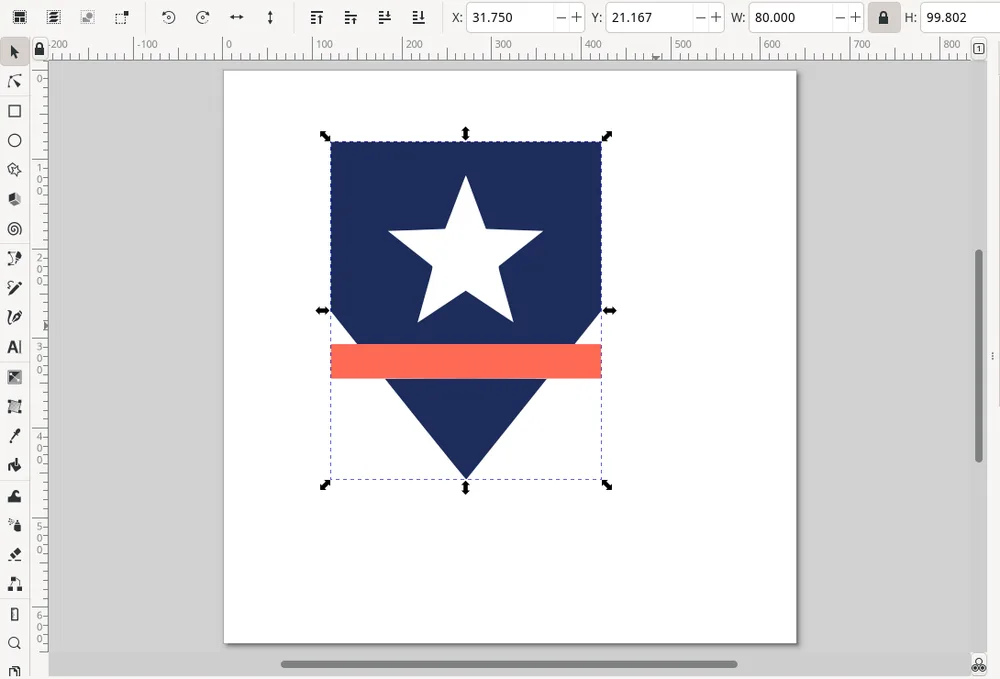
4. Open Ink/Stitch's Params
With both shapes still selected, choose Extensions › Ink/Stitch › Params. This is where Ink/Stitch decides how each shape is stitched.
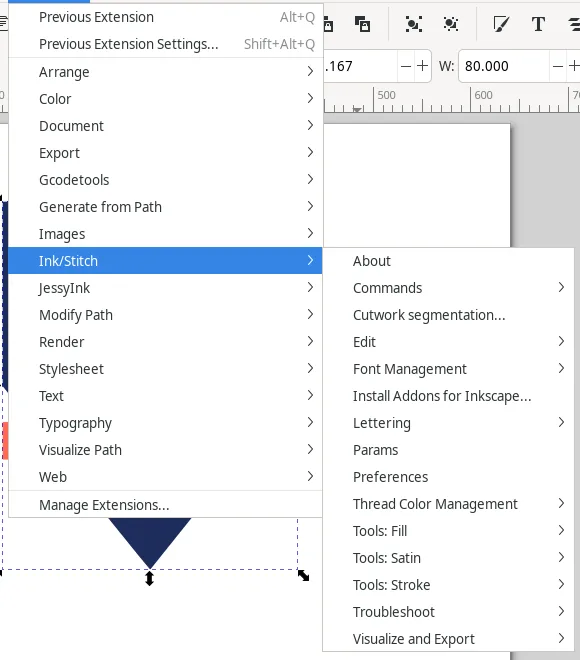
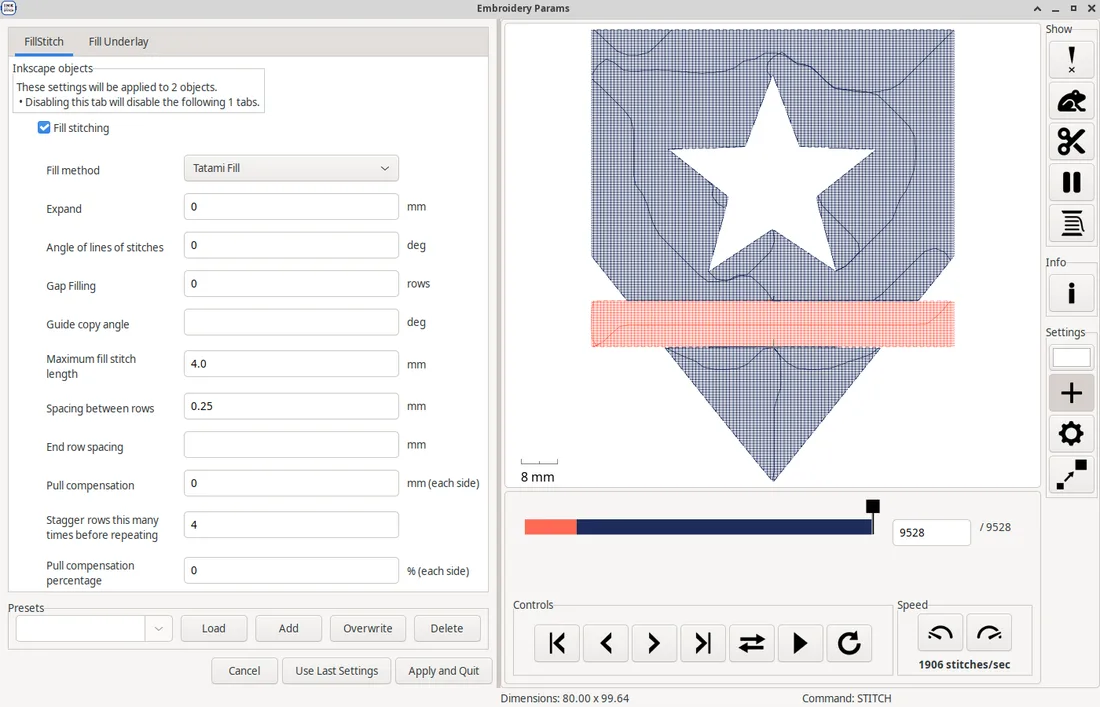
5. Choose the fill
Ink/Stitch sees two filled shapes and gives them Tatami Fill, rows of stitches that cover the area. The defaults are sensible to start with: rows 0.25 mm apart and stitches up to 4 mm long. The right half of the window simulates the stitching as you change settings. With the defaults, our shield came to 9,528 stitches.
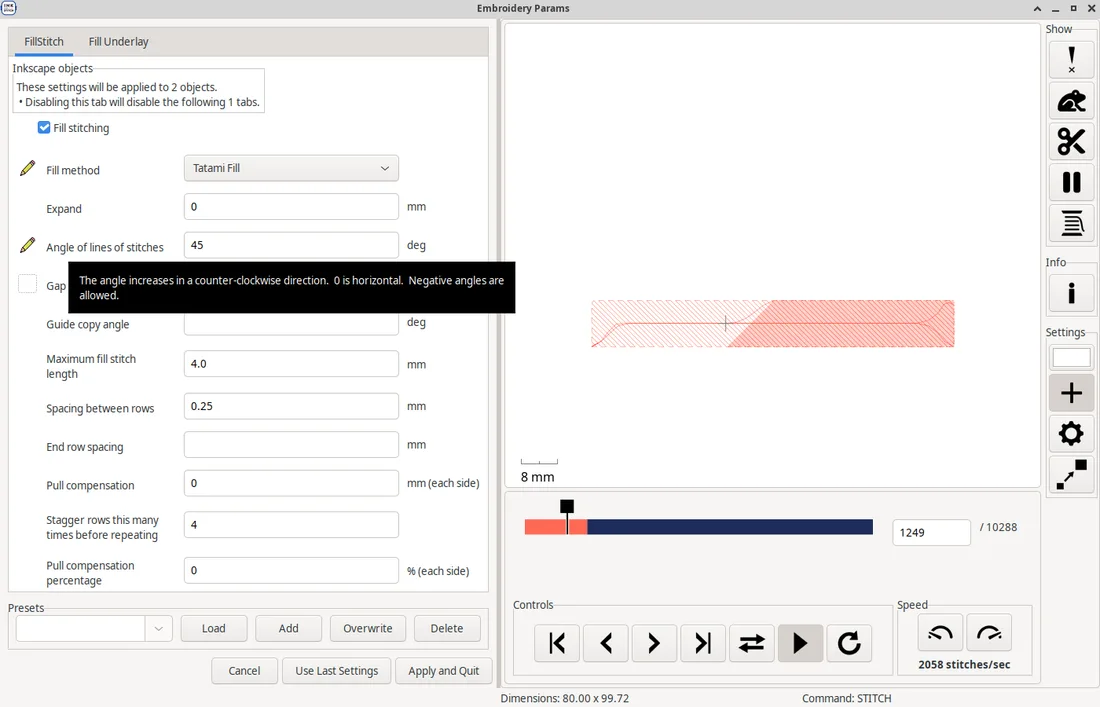
You can also turn the rows. 0° is horizontal, and the angle goes counter-clockwise. We set 45° for both shapes, and the count went to 10,288. Play the simulation to watch the order: the coral band sews first, then the navy.
Click Apply and Quit. The settings are saved inside the drawing.
6. Save a copy as DST
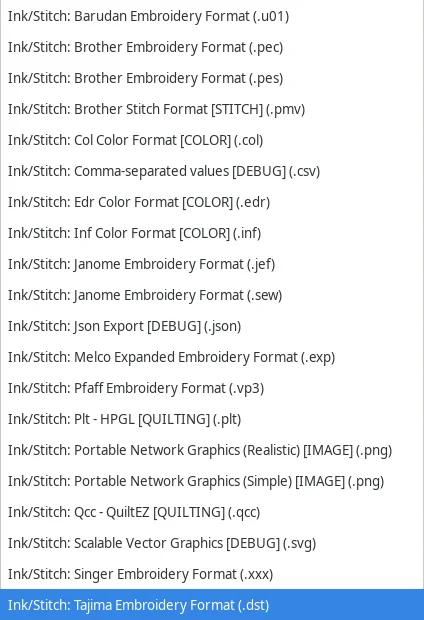
Choose File › Save a Copy (Shift+Ctrl+Alt+S). In the file type list, pick Ink/Stitch: Tajima Embroidery Format (.dst), name the file and save. The same list has PES, JEF, EXP and VP3, if your machine reads one of those instead.
Then save the drawing itself as an Inkscape SVG with File › Save. Ink/Stitch's documentation recommends it: the DST holds only stitches, and the SVG is the copy you can change later.
7. Check the DST before you sew
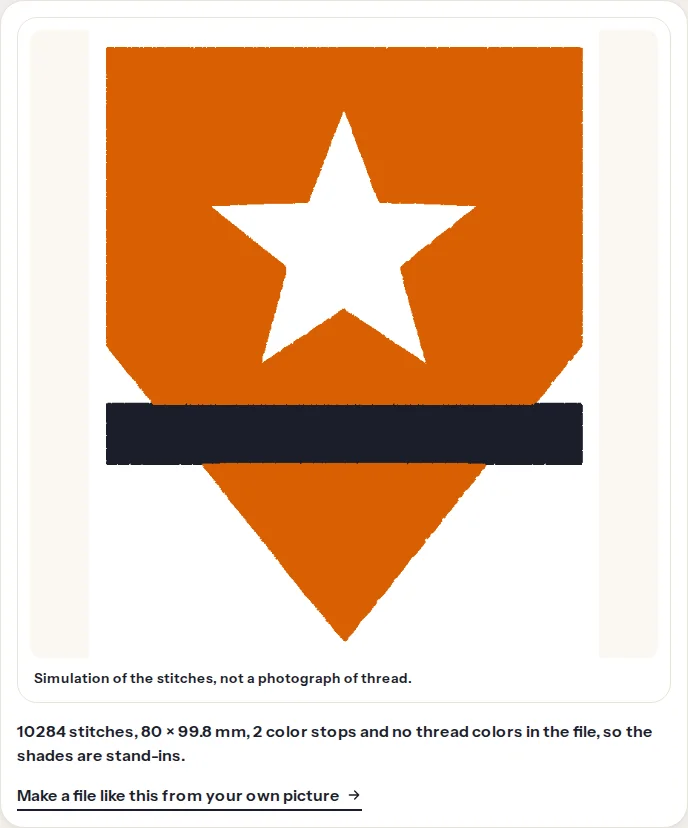
Open the DST in a viewer to see what the machine will get. Ours read back as 10,284 stitches at 80.0 × 99.8 mm, in two colors, four fewer stitches than the simulation counted. There are no thread colors, because DST stores none, so the viewer shows each color stop in a stand-in shade. Note the order, coral then navy, and thread your machine to match: the machine knows only that the thread changes.
Then sew a test on scrap of the same fabric, with the stabilizer you will use. A fill this size can pull the fabric in, and Ink/Stitch's pull compensation and underlay settings are where to fix it.
Open your DST in the free viewerThe quick way: the same PNG in BobbinBot
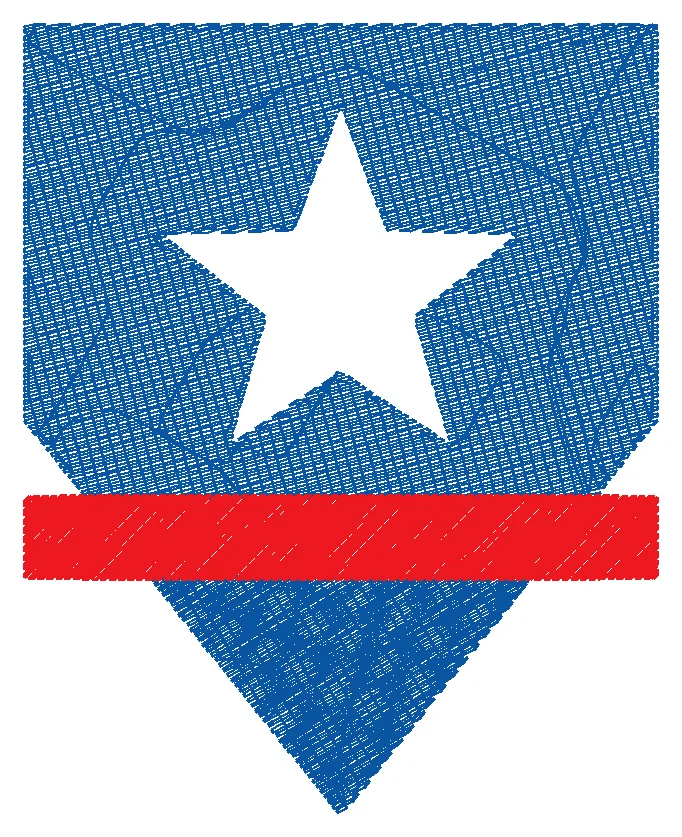
We uploaded the same shield to BobbinBot and asked for the same 80 mm width. The engine traced it, stitched it with Ink/Stitch underneath and checked the result in 11.2 seconds on our machine: a green verdict, 6,778 stitches, 79.2 × 98.6 mm, in two Brother threads, Blue and Red.
You do not set scans, sizes or fill angles, and you get every format in one download: PES, DST, JEF, EXP, VP3 and four more. Before you pay, you see the stitches and a verdict that says plainly when a picture will not sew well. Your first design is free.
Ink/Stitch gives you control over every setting, and it is worth learning if you digitize often. BobbinBot is for when you want the file now.
Questions
Is Ink/Stitch really free?
Yes. Ink/Stitch is open-source software under the GNU GPL version 3, and Inkscape is free and open-source under the GPL too. Both run on Windows, macOS and Linux.
Can I convert a PNG to DST without tracing it?
No. A PNG is pixels and a DST is needle moves, so the picture has to become shapes first. Any PNG to DST converter has to trace it somehow; BobbinBot does it for you.
Why does my DST have no colors?
DST does not store colors, only where the thread changes. Write down the colors in sewing order and thread them yourself, or save a PES, JEF or VP3, which keep a thread color for each part.
Can Ink/Stitch save a PES or JEF instead?
Yes. The same Save a Copy list has PES, JEF, EXP, VP3 and more. Pick the format your machine reads.
What size should the design be?
Small enough to fit the hoop you will use, with a little room around it. The machine finder lists the hoops of common machines.